Create Your First Ad Spot
Ad spots are at the heart of radio activity. With SpeakRadio, you can produce them in just a few minutes, without a recording studio or voice actor. Here's how to get started.
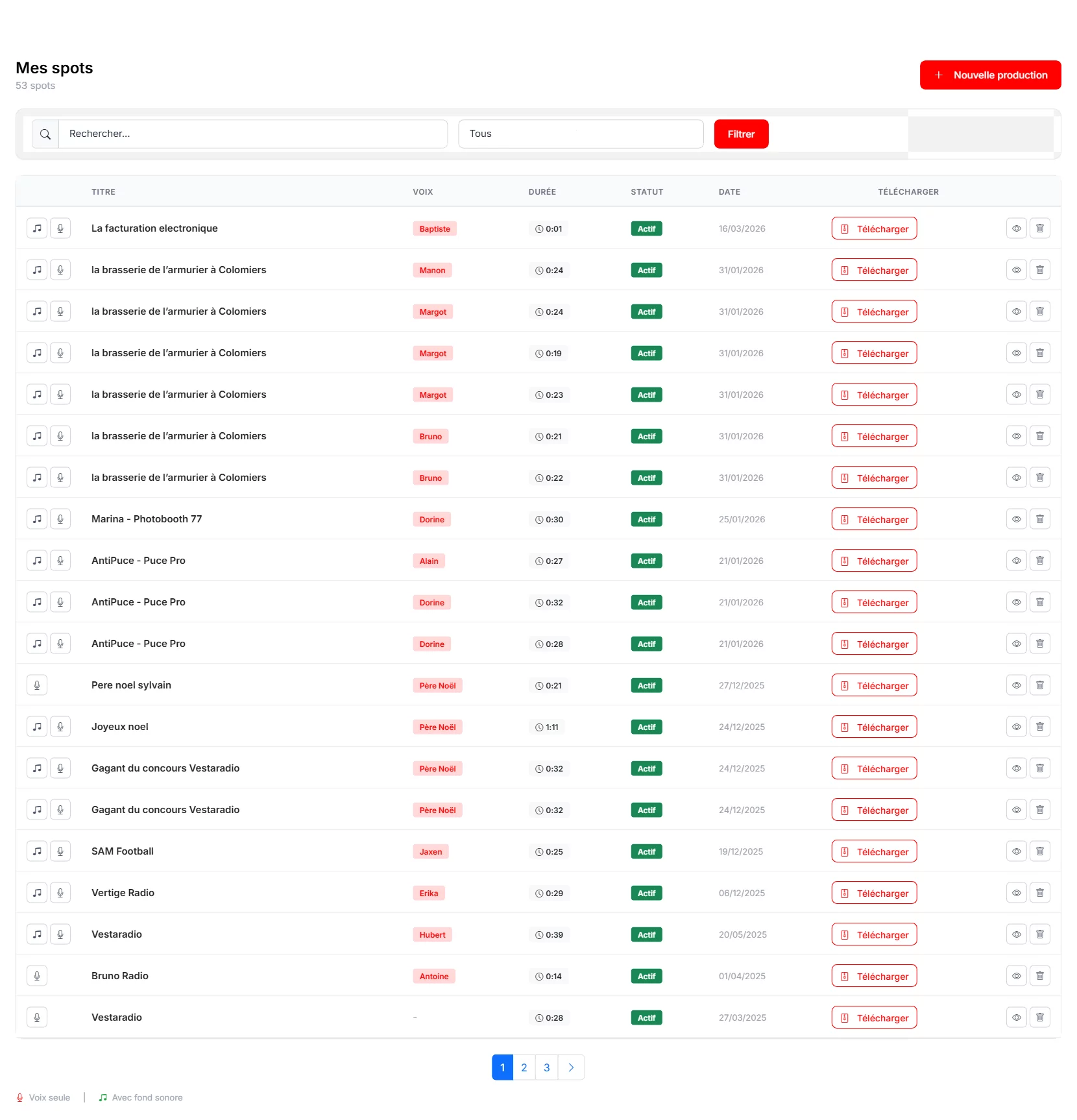
Step 1: Access the Creator
From your dashboard, click on "Spots" in the left sidebar menu, then on "New Spot". You can also use the "Ad Spot" shortcut in the "Create a production" section of the dashboard.
Step 2: Configure Your Spot
The creation page offers three essential parameters:

- Title — Give your production a clear name (e.g., "Summer Promo Restaurant Le Soleil").
- Voice — Click "Choose a voice" to browse the 61 available voices. Listen to demos to find the one that best matches your advertiser.
- Intonation — Choose from Standard, Dynamic, Soft, Serious or Enthusiastic to set the reading tone.
- Background sound — Select background music from the library or import your own audio background.
Step 3: Write the Script
In the "Spot script" area, you have two options:
- Write it yourself — A word counter and duration estimate help you calibrate the length.
- Generate with AI — Click the "Generate with AI" button to get an automatic professional script based on the information you provide (company name, offer, contact details...).
The text can be edited at any time before generation. Use line breaks to control pauses and rhythm.
Step 4: Generate the Spot
Once satisfied with the script, click the red "Generate" button. The AI synthesizes the voice, applies the chosen intonation, mixes with the background sound and delivers a ready-to-broadcast file. Generation usually takes 15 to 30 seconds depending on length.

Step 5: Listen and Download
Once generated, you can listen to the result directly in the browser. If you're satisfied, download the MP3 file. Otherwise, adjust the script or parameters and regenerate — each attempt only costs credits for the final production.
Tips for a Good Spot
Keep your message short and punchy (15 to 30 seconds is ideal). Include a clear call to action (phone number, website, address). Test several voices and intonations to find the best combination. Consider using AI generation for fresh, professional scripts.
Now that you've mastered ad spots, discover how to create a professional radio jingle to strengthen your station's sonic identity, or explore automated voice tracks to streamline your broadcast. For a full platform overview, check our getting started guide.